Schedule the scan
Saving a scan to run on a schedule, and managing schedules and monitors.
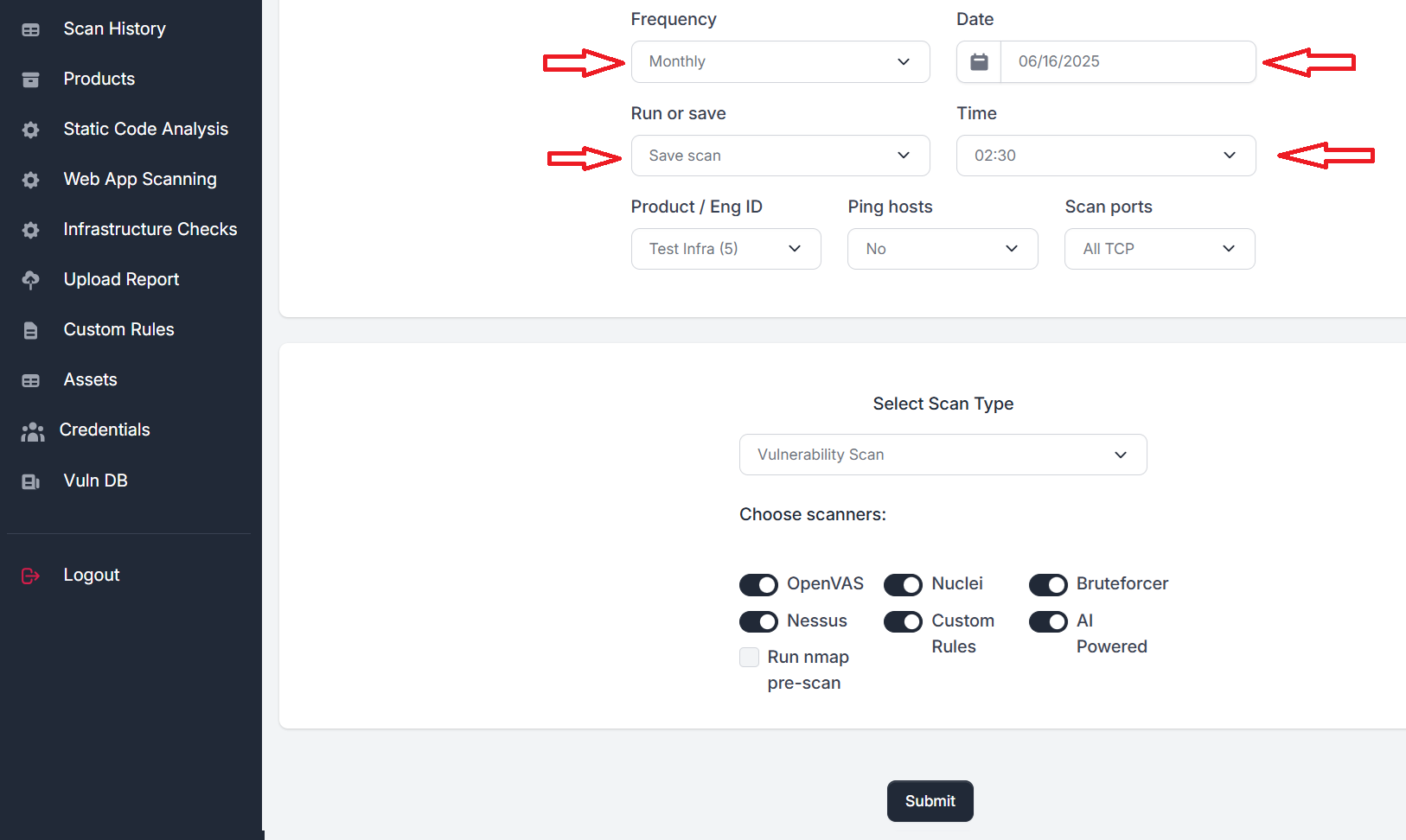
Any scan can be saved to run on a schedule. On the scan form, choose how often it runs — Once, Daily, Weekly or Monthly, and for static analysis also Monitor Changes — and the date and time of the first run.
When you set a frequency, the Run or save control changes to Save scan — meaning the scan will not execute immediately, but is stored for future runs.
- 01Choose the frequency, date and time
- 02Specify the targets and enable the scanners you want
- 03Click Submit
The scan is scheduled.
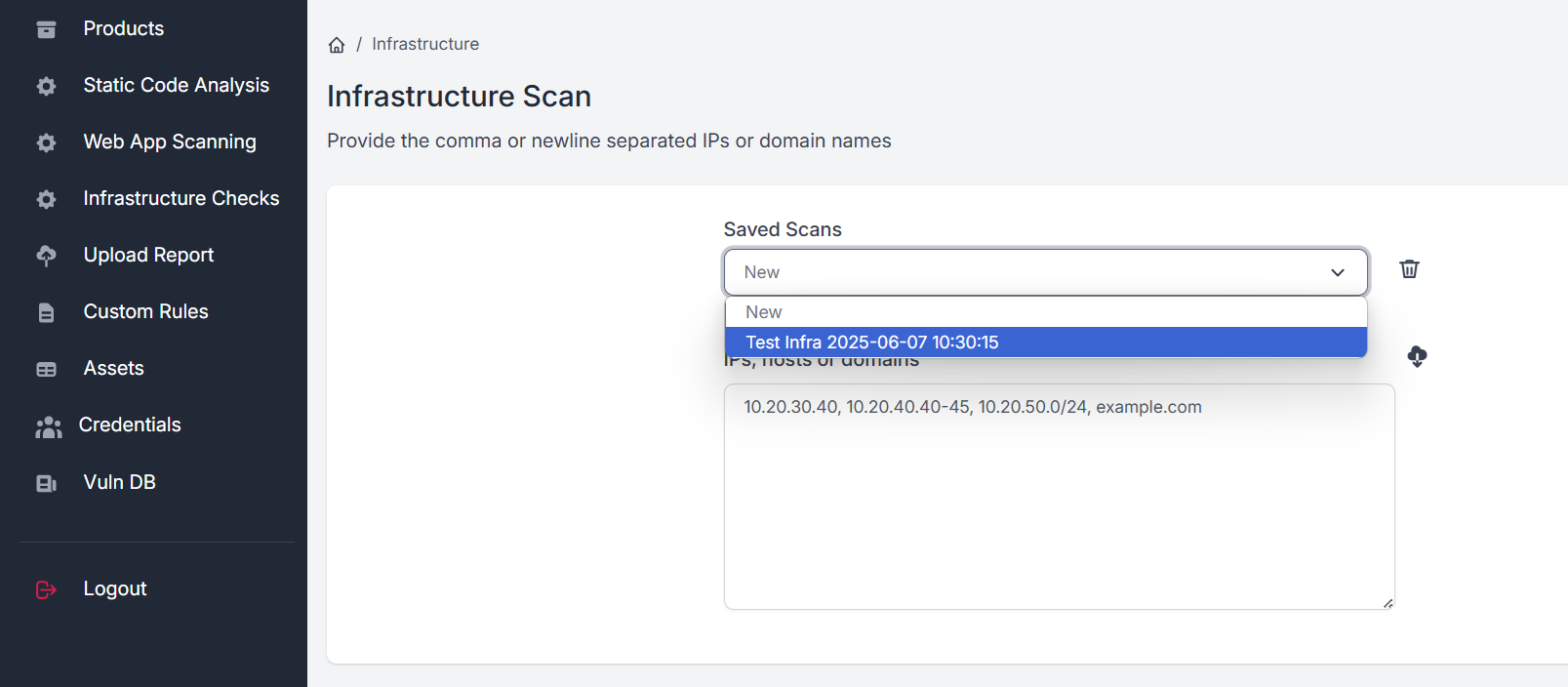
To change what a saved web or infrastructure scan runs — its targets or scanners — choose it from the Saved Scans list at the top of its scan form, change it and click Submit.
The Schedules page
Click Schedules in the sidebar to see every recurring scan and repository monitor on one page, Schedules & Monitors: when each runs next and how the last one went. New schedule opens the static analysis form.
| Column | What it shows |
|---|---|
| Name | The schedule's name and scan type. |
| Target | What it scans. |
| Runs | How often: once, daily, weekly or monthly at a time, or a monitor that checks the branch hourly. |
| Next run | When it runs next, or Paused. |
| Last scan | The last scan it started and how it ended. Click it to open the scan. |
Each row has these actions:
- Run now starts the scan straight away, in addition to its schedule.
- Pause stops the schedule until you click Resume.
- Rename changes the schedule's name.
- Delete removes the schedule. Scans it already ran stay in Scan History.
Changes take effect within a minute. Members see the schedules they created; administrators see everyone's. A product's schedules are also listed on the Scans & schedules tab of its page — see The product page.
Static analysis has its own scheduling model, including monitored branches and incremental scans — see Scheduling periodic and incremental scans.
In ScanSuite Teams, team admins see every schedule of their team.
Last reviewed 2026-09-25