The scan page
Where a scan is, what it spent and what it changed.
Every scan has its own page: where it is, what it spent and what it changed. Open it from Scan History by clicking a scan's date or target, from a target's scan history on its product page, or from the Last scan strip on the Vulnerabilities page. Starting a single scan brings you here.
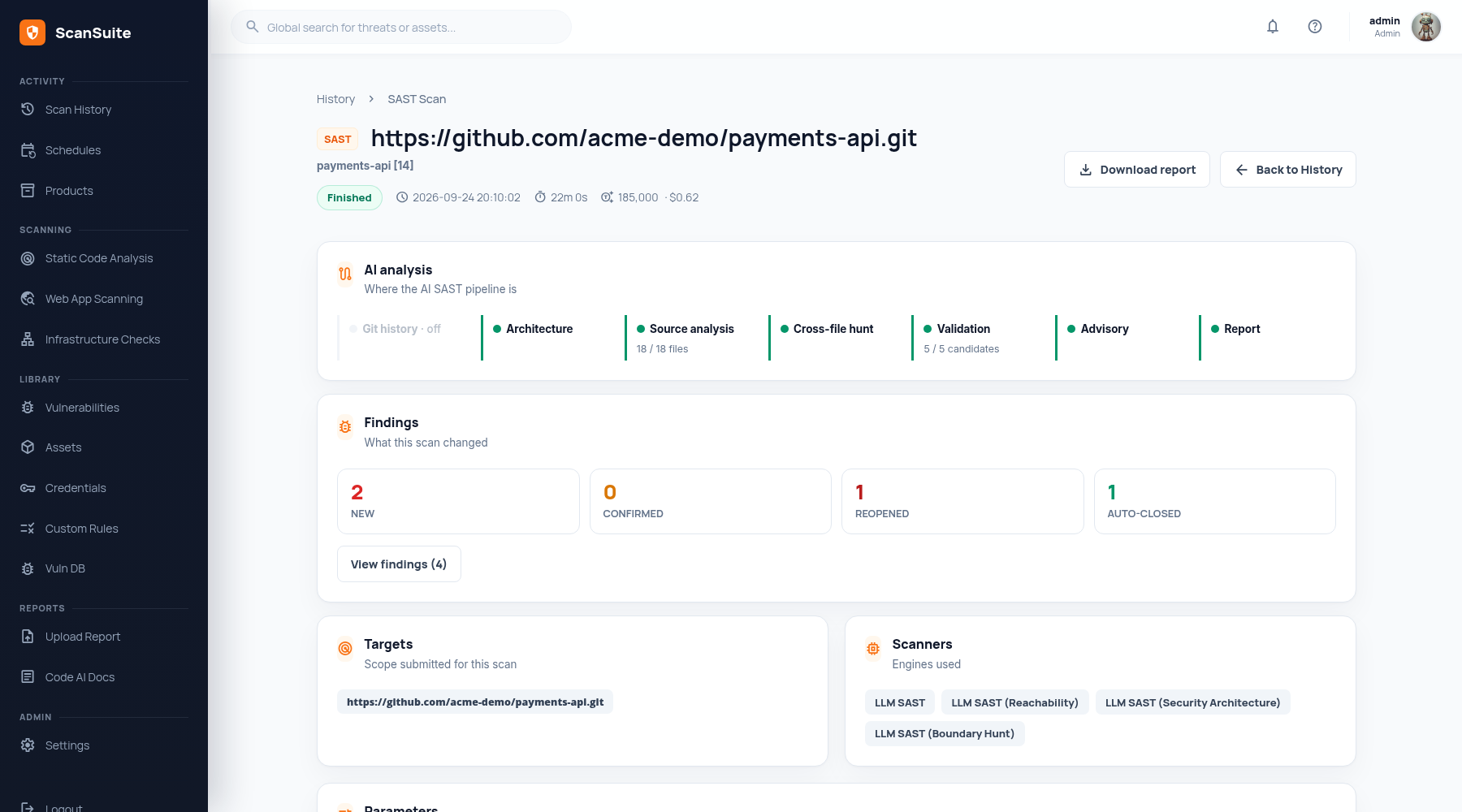
Status and controls
Under the target, the header shows the product, the status, when the scan started, how long it has run, and the LLM tokens it spent — with the cost once LLM prices are set. The page updates itself while the scan runs.
| Button | What it does |
|---|---|
| Stop | Asks first, then stops a running scan. |
| Resume AI analysis | For an AI SAST scan that stopped part-way: continues from its last checkpoint. When a scan cannot be resumed, the page says why. |
| Download report | Downloads the report. While reports are still being written it reads Download partial report. |
| Recover reports | For an Acunetix scan whose reports did not arrive: fetches them again. |
| Back to History | Returns to Scan History. |
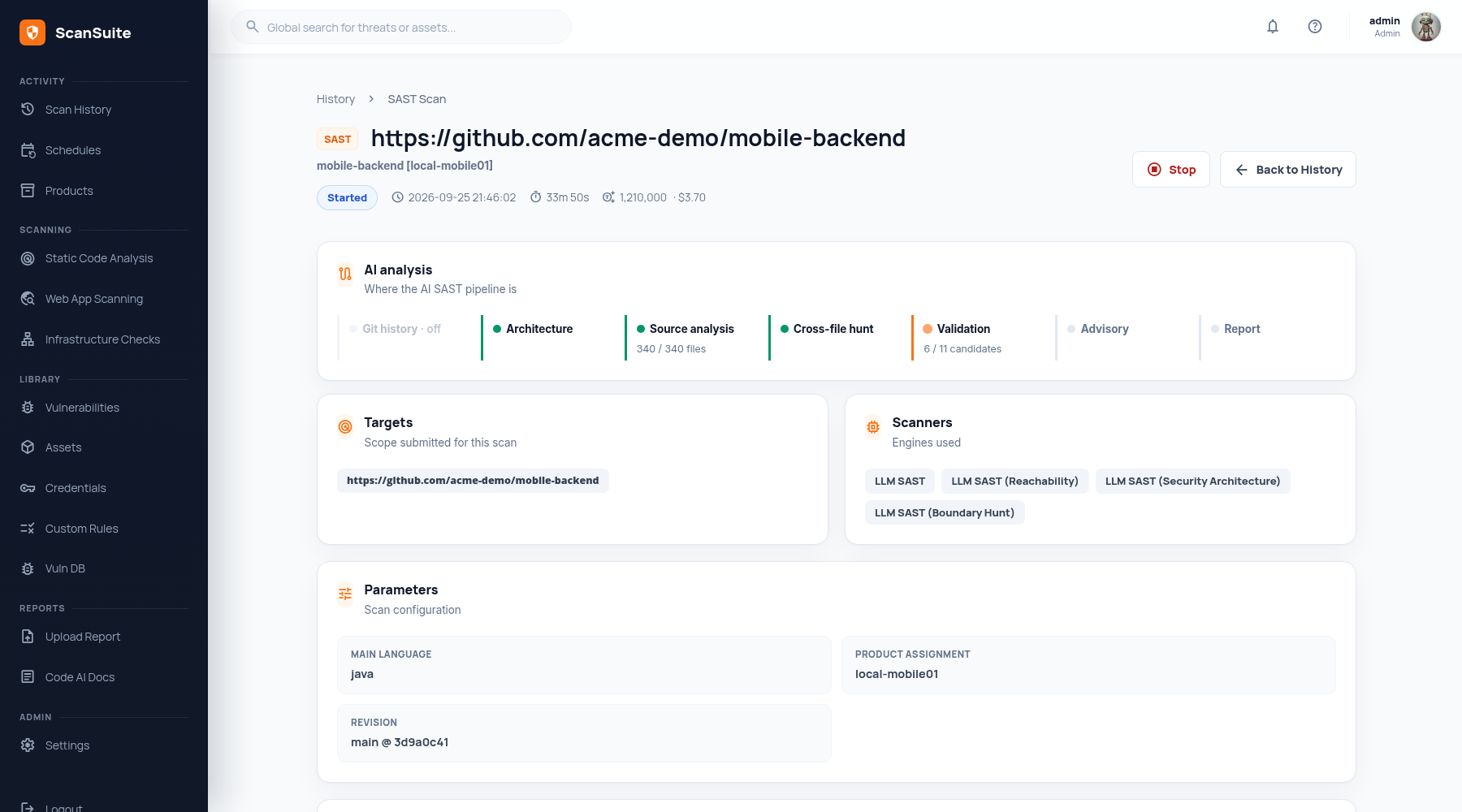
AI analysis stages
An AI SAST scan shows where its pipeline is: Git history, Architecture, Source analysis (with the files analyzed), Cross-file hunt (with the units traced), Validation (with the candidates checked), Advisory and Report. A stage switched off for the scan is marked off. Other scan types do not have this panel. See Executing the AI-powered scan.
What this scan changed
The Findings panel counts what the scan did to the vulnerability list:
| Count | Meaning |
|---|---|
| New | Findings reported for the first time. |
| Confirmed | Open findings the scan reported again. |
| Reopened | Resolved findings the scan found again. |
| Auto-closed | Findings closed because the scan showed the defect is gone. |
Click a count, or View findings, to open the Vulnerabilities page filtered to this scan. Some engines write their findings only to the report; for those the panel says so.
Configuration and spend
- Targets: the scope submitted for the scan.
- Scanners: the engines it used.
- Parameters: its settings, such as the main language, the product and the revision (branch @ commit) that was scanned.
- LLM Tokens: prompt, completion and total tokens, and the number of LLM calls.
Log output
The log streams as the scan runs. Filter it by level — All levels, Warnings and errors or Errors only — and by scanner, and copy it with the button beside the filters.
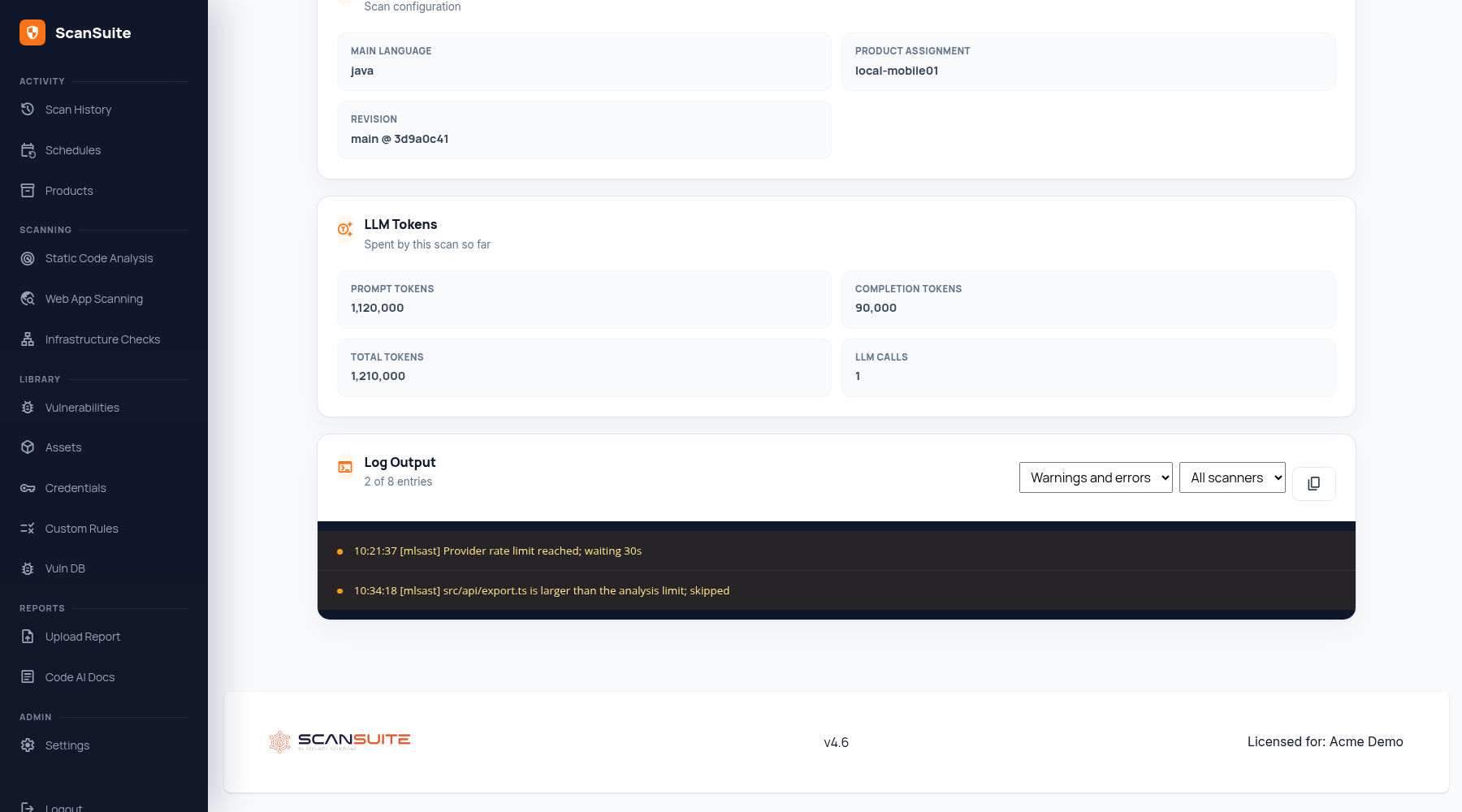
For AI scans the log is the best progress indicator you have — it names the stage the agent is in and reports what each gate dropped, which is how you tell a slow scan from a stuck one.
In ScanSuite Teams, a scan of an archive uploaded from CI also shows the repository, branch and commit the archive was made from.
Last reviewed 2026-09-25