Static Code Analysis
Analyse a repository or an archive: AI Native SAST, secrets, dependencies and the classic scanners.
Static analysis in ScanSuite covers several distinct engines, all configured on one page and all running against the same checkout:
| Engine | What it does |
|---|---|
| AI Native SAST | A model reads each file in scope and reports what it finds, then a reachability agent decides whether the finding is actually reachable. |
| Secrets Detection | Finds exposed keys, tokens and credentials — optionally with the model judging which are real. |
| Dependency Check (SCA) | Maps third-party libraries to known CVEs, optionally gated by whether the application can reach them. |
| Classic SAST scanners | Quick and Full application scanning, custom rules, IaC analysis and Snyk. |
| IaCS Analysis | Reviews Terraform, Kubernetes and cloud configuration risks. |
| AI Code Documentation | Generates a security-oriented tutorial of the codebase. |
Scan types supported
Both on-demand and scheduled scans are supported. Additionally you can configure repository monitoring to check a branch for updates and automatically run an incremental scan on the changes. See Scheduling periodic and incremental scans.
Step by step
- 01Create a product
Before initiating a scan, create a product as described in the Products chapter. When there is none yet, the form links to product creation.
- 02Provide the source code
Either upload a ZIP archive containing one or more source directories, or specify a Git repository URL. Both HTTPS and SSH formats are supported.
- 03Open the Static Analysis tab
Upload the archive or enter the repository path, then select the main programming language of the project.
When you enter a single repository, the form shows what its last finished scan spent: the date, the LLM tokens and calls and, once models are priced, the cost. It is the nearest thing to a price for the next scan.
If the repository requires authentication, set that up first — Git repository authentication. The form warns you as you type an SSH address when no SSH key is saved.
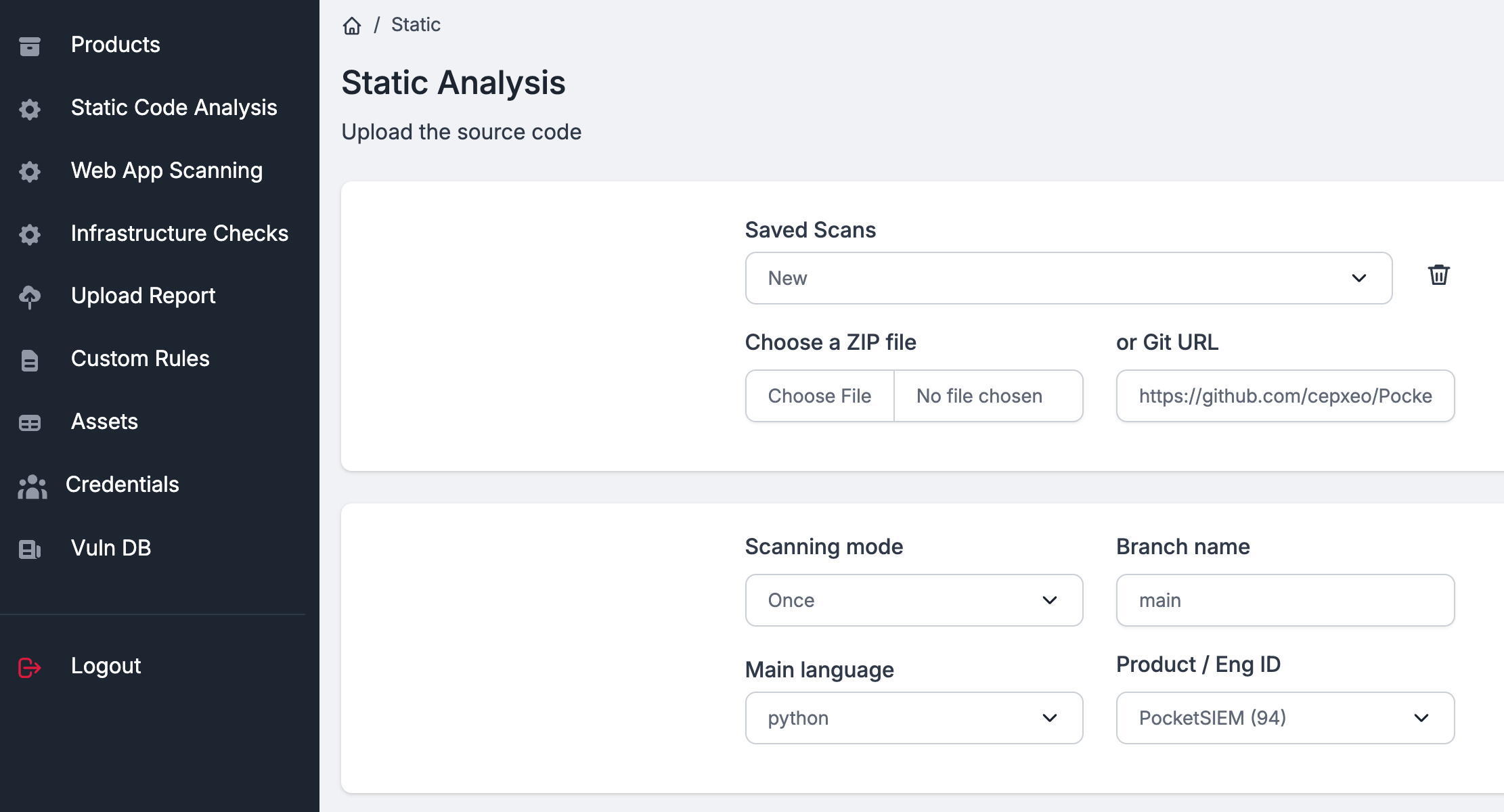
Choosing engines
Language-specific scanners are triggered automatically based on the Main Language you selected. Choosing All supported languages is the right option for a polyglot repository.
Language coverage
AI Native SAST reads 30+ languages. Twelve of them also have a native scanner engine behind them, which is what the Main Language dropdown is selecting between:
| Coverage | Languages |
|---|---|
| Native scanner engine and AI SAST | C, C++, C#, Go, Java, JavaScript, Kotlin, PHP, Python, Ruby, Swift, TypeScript |
| AI Native SAST only | COBOL, Dart, Elixir, Erlang, F#, Groovy, Haskell, Lua, Objective-C, Perl, PowerShell, Rust, Scala, Shell, SQL, Svelte, Visual Basic, Vue |
The dropdown names the languages with a native engine, plus COBOL. To put AI SAST on anything in the second row, choose All supported languages — it hands the model every extension in the table rather than one language family.
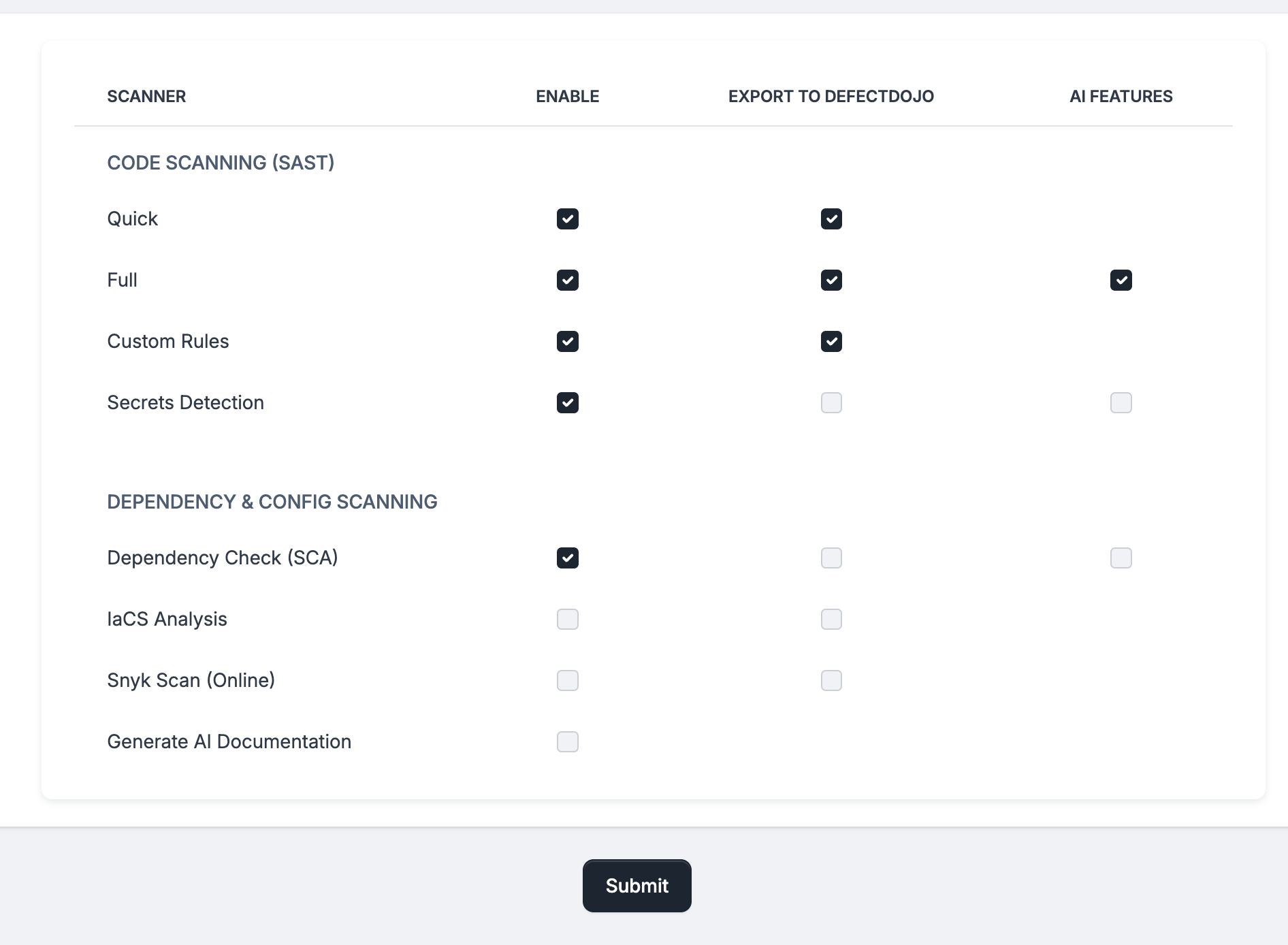
On the same page you then choose:
- Additional multi-language scanners and extra features, such as AI code documentation.
- Which scan results should be exported to DefectDojo — this is a per-scanner checkbox.
- Which AI features to enable:
- AI Native SAST, with optional Analyze Git history, Verify findings reachability, Analyze security architecture and Cross-file hunt: auth, data isolation, LLM, CI/CD, which needs the architecture analysis
- Verify secrets with AI
- Enrich findings details with AI and Verify findings reachability for the dependency check
Each AI option says in one line what it does, so you can judge what it adds to the cost before you switch it on.
Scope
The Scanning Mode dropdown groups the modes by when they run, and the line under it says what the chosen mode will do:
| Group | Modes |
|---|---|
| Run now | Full scan, Incremental Scan, Custom Scope and Verify Fixes. Custom Scope takes a list of file and folder patterns, so you can point an expensive AI pass at the code that matters rather than the whole tree; Verify Fixes takes the findings to reassess. |
| Repeat | Daily, Weekly and Monthly: a scan now, then one at the time you set in Run at. |
| Watch the repository | Monitor Changes: the branch is checked every hour and only what changed is scanned. |
Modes that need Git history are disabled while a ZIP archive is the source: an archive can only be scanned once. See Scheduling periodic and incremental scans.
AI analysis is priced per token, so scope is the main cost control you have. Custom Scope, Incremental Scan and Monitor Changes all exist to keep a re-scan proportional to the change rather than to the size of the codebase.
Submitting
Check that Product Assignment names the product the findings belong to, then click Start Analysis.
A single scan opens its own page, where you follow it stage by stage — see The scan page. Every scan is also listed in Scan History.
Last reviewed 2026-09-25