Git repository authentication
Give ScanSuite access to a private repository with an SSH key.
To analyse source code from private repositories, authenticate using an SSH key.
SSH key authentication is currently the only supported method for accessing protected repositories.
1. Generate an SSH key
Create a new key with a standard tool such as ssh-keygen.
ssh-keygen -t ed25519 -f ./scansuite_deploy_key -N ""Do not set a passphrase. Passphrase-protected SSH keys are not supported, and the clone will fail with an authentication error that does not name the passphrase as the cause.
2. Add the public key to the repository host
Add the public key to the version control platform:
| Platform | Where |
|---|---|
| GitLab | Settings → SSH Keys |
| Bitbucket | Personal Settings → SSH Keys |
| GitHub | Settings → SSH and GPG keys, or a per-repository deploy key |
Prefer a read-only deploy key scoped to the single repository over a personal account key. ScanSuite only ever needs to clone.
3. Add the private key to the team
The key belongs to the team, so every scan in the team clones with it, whoever starts the scan. Team admins and operators set it:
- 01Open Teams → Team settings → Scan credentials
- 02Paste the private SSH key into the repository key field
- 03Click Save repository key
The key must include its header and footer lines:
-----BEGIN OPENSSH PRIVATE KEY-----
...
-----END OPENSSH PRIVATE KEY-----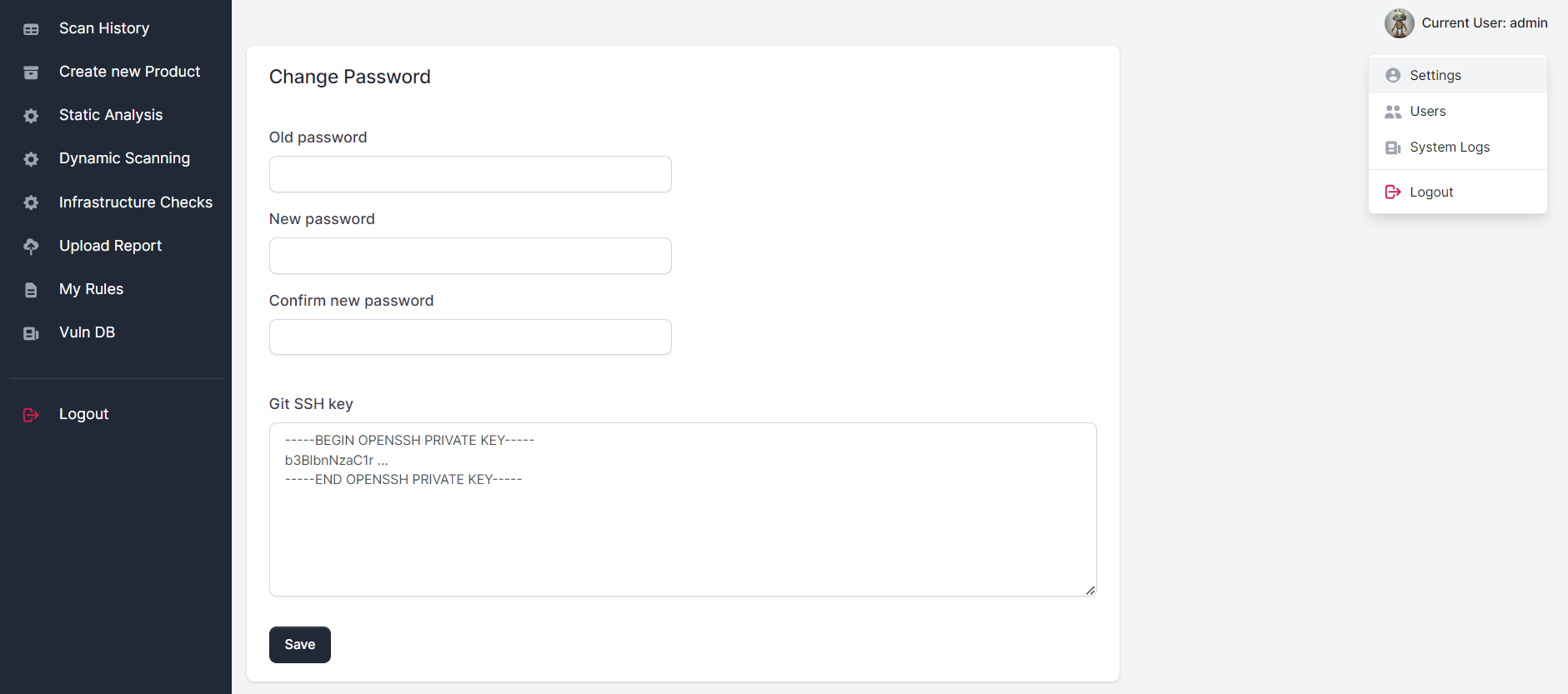
The key is stored encrypted and never shown again. A scan keeps using the key it started with; Revoke stops scans that still need it. Replacing the key affects new scans only.
The personal Git API key under My account is only used to list the repositories of a Bitbucket project on the scan form. It is never used to clone.
4. Specify the repository in SSH format
On the Static Analysis tab, enter the repository path using the SSH form:
git@mydomain.com:username/reponame.gitThis format is what tells the platform to authenticate with the stored key.
Last reviewed 2026-08-16