Single sign-on
Microsoft Entra ID, OpenID Connect and AD/LDAP through a broker, with roles from directory groups in every team.
People can sign in to ScanSuite through your organisation's identity provider: Microsoft Entra ID, any OpenID Connect provider, or Active Directory / LDAP through an OpenID Connect broker such as Keycloak. The provider is connected once, for the whole installation, in System Settings; who gets access and with which role is up to each team, which maps directory groups to its own roles or links members to their provider accounts. Someone removed from a directory group loses access.
Password sign-in keeps working while you set this up. Single sign-on becomes mandatory only when a system administrator requires it, and even then system administrators can still sign in with a password if the provider is down.
1. Enable single sign-on on the server
None of these settings is in the .env file the installer creates: add them by hand to /opt/scansuite/.env and apply them with ./scansuite restart. <YOUR_DOMAIN> is the host name people open ScanSuite at.
| Setting | Value | Default |
|---|---|---|
| SSO_ENABLED | true turns single sign-on on. Without it the single sign-on form in System Settings is unavailable. | false (anything but true) |
| SSO_CALLBACK_URL | https://<YOUR_DOMAIN>/sso/callback: HTTPS, exactly this path and no query. Register it with the provider as the redirect URI. | Empty |
| OIDC_ALLOWED_HOSTS | Comma-separated hosts ScanSuite may contact during sign-in. For Entra: login.microsoftonline.com,graph.microsoft.com; for a broker, its host name. | Empty (no provider can be reached) |
| SSO_MAX_STALE_SECONDS | Optional. How long a single sign-on session lasts before the person signs in again and ScanSuite rereads their groups. | 28800 (8 hours) |
Check: after the restart, System Settings → Sign-in and access shows the Single sign-on form with its fields enabled. While the card reads Switched off, SSO_ENABLED=true has not reached the services.
Every provider address (issuer, discovery document, authorization, token and key endpoints) has to use HTTPS on the standard port 443, be on a host in OIDC_ALLOWED_HOSTS and answer without redirects. Publish a broker on another port, such as Keycloak on 8443, through a reverse proxy on 443.
If the provider supports back-channel logout, also register https://<YOUR_DOMAIN>/sso/backchannel-logout. ScanSuite then ends a person's sessions as soon as the provider signs them out.
2. Register ScanSuite with the provider
Microsoft Entra ID
- 01Register an application
Single tenant, with the web redirect URI https://<YOUR_DOMAIN>/sso/callback and a client secret.
- 02Add a groups claim
Token configuration → Add groups claim → Security groups, as Group ID in the ID token.
- 03Grant GroupMember.Read.All
API permissions → Microsoft Graph → Application permissions, with admin consent. With it ScanSuite rereads group membership every 30 minutes and finds the groups of people in many groups. Without it, group changes apply only at the next sign-in.
The Entra issuer URL names the tenant by its GUID: https://login.microsoftonline.com/<TENANT_ID>/v2.0. The discovery URL is the issuer URL followed by /.well-known/openid-configuration.
Other OpenID Connect providers
Register a confidential client with the same redirect URI. ScanSuite asks only for the openid and profile scopes, so for roles to follow groups the provider has to put a groups claim, with group names or IDs, into the ID token by itself. Without one, link members one by one.
Active Directory / LDAP
ScanSuite never connects to LDAP and never sees directory passwords. It trusts a broker that federates the directory. For Keycloak:
- add an LDAP user federation (Active Directory,
ldaps://, read-only) withobjectGUIDas the UUID attribute, so user IDs never change; - add an LDAP group mapper;
- create a confidential OpenID Connect client with the same redirect URI;
- add a Group Membership mapper that puts
groupsinto the ID token with the full group path, for example/corp/security/scanners.
Someone disabled in Active Directory loses access at their next sign-in, at a back-channel logout from the broker, or at the latest after SSO_MAX_STALE_SECONDS.
3. Connect the provider in System Settings
A system administrator opens System Settings → Sign-in and access and fills in the Single sign-on card:
| Field | What to enter |
|---|---|
| Provider type | OpenID Connect, Microsoft Entra ID or AD / LDAP federation broker. |
| Issuer URL | Identifies the provider. It cannot be changed after saving, because every linked account records it; another provider needs a new connection and new links. |
| Discovery URL | Usually the issuer URL followed by /.well-known/openid-configuration. |
| Client ID, Client secret | From the application registration. The saved secret is never shown; leave the field empty to keep it. |
| Let people sign in with this provider | Turns sign-in on. A newly saved connection stays off until you switch this on. |
| Require single sign-on | Closes password sign-in to the teams' work. Off by default; see step 5 before turning it on. |
Click Save, then Test connection.
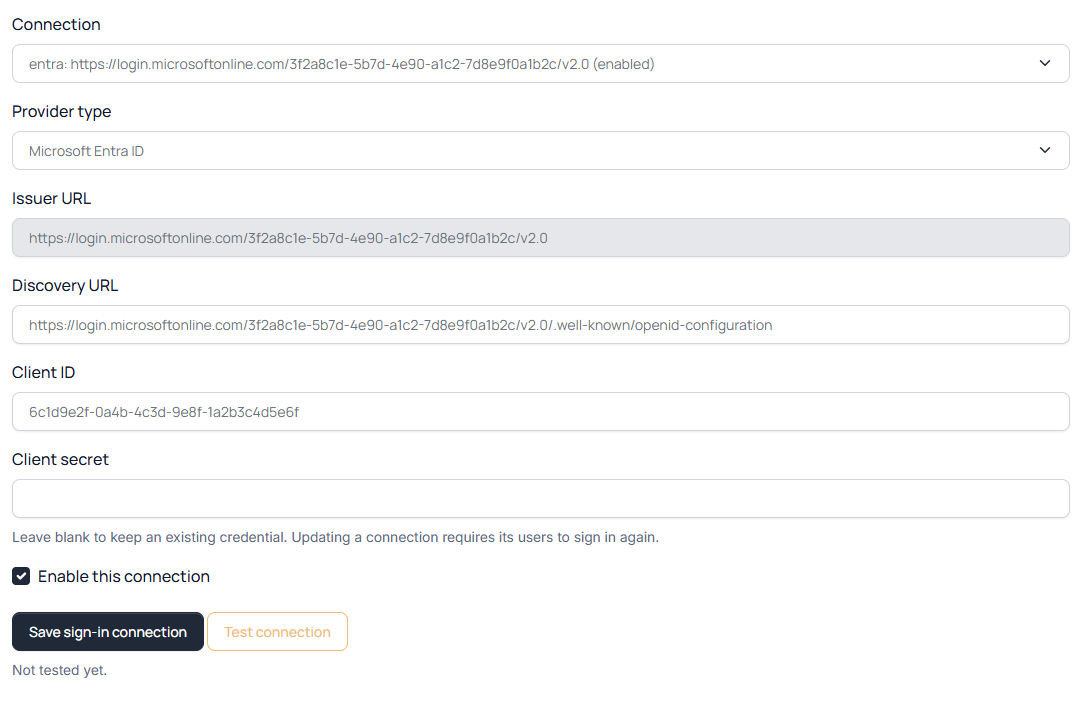
Test connection checks the discovery document and the signing keys and, when any team maps Entra groups, access to Microsoft Graph as well. The card shows the result of the last check and when someone last signed in through the provider.
The sign-in page has no single sign-on button. Each team signs in at its own address, https://<YOUR_DOMAIN>/sso/<TEAM_SHORT_NAME>: the person signs in with the provider and lands on the Teams page. A single sign-on session works only in the team it signed in to.
4. Decide who gets access
The provider proves who someone is; each team decides what they may do. Its admin opens Teams → People, where the Single sign-on groups card appears once single sign-on is on and a provider is connected. A team sees and changes only its own mappings and links.
| Section | What it does |
|---|---|
| Identity provider | The installation's connected provider the mappings below belong to. |
| Group mappings | One line per group: the group ID from the provider, an equals sign, then a role: team_admin, operator, vuln_manager or reader. Anyone in a mapped group can sign in: an account is created at their first sign-in, without a password, with the highest role among their groups, in the order team_admin, operator, vuln_manager, reader. Click Save. Saving signs out everyone who got access through groups; they are checked again when they sign in. |
| Link a member to a provider account | Links an existing member to their unchanging ID at the provider (the sub claim). Email addresses are not used for linking, and for Entra sub is not the Object ID. The member then signs in through the provider and keeps the role the team gave them. |
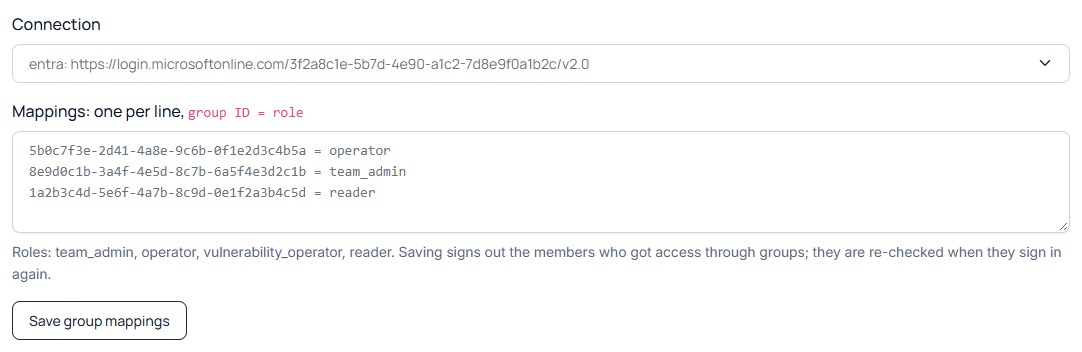
Members who came through groups are marked from the directory. Their role follows the groups: it is updated at every sign-in, at least every SSO_MAX_STALE_SECONDS, and every 30 minutes for Entra. Someone who has left every mapped group loses access. A team admin can suspend such a member but not change their role. Groups never change the roles of members the team added itself.
One person is one account in every team: someone who signs in to two teams through groups has a role in each. Groups never bring an account that has a ScanSuite password into a team it is not already in; the team's admin adds such a person directly. That way a link made in one team gives no access to others.
5. Require single sign-on (optional)
Require single sign-on, on the same card in System Settings, closes password sign-in to the teams' work: someone who signed in with a password gets Access denied with a link to sign in through the provider. So that nobody is locked out, it can be turned on only when:
- the provider connection is saved and sign-in through it is allowed;
- the system administrator turning it on signed in through the provider in this session;
- system administrators keep password sign-in, the way back in if the provider is down. Every such sign-in is logged.
ScanSuite asks you to confirm.
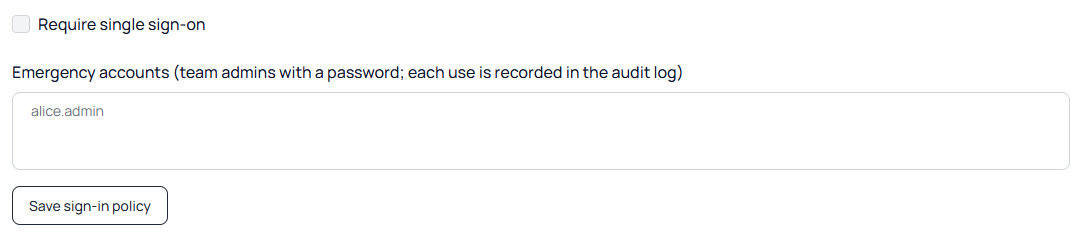
Before requiring single sign-on, try signing in and out through the provider for real.
Checking it works
| What to check | Where |
|---|---|
| The provider is reachable and configured | Test connection in System Settings. |
| Group changes applied | The team's log on the Activity tab, topic People and access: someone signed in through a directory group, the directory updated or removed someone. |
| The provider's sign-out reaches ScanSuite | The same log: the provider ended someone's session. |
| Someone signed in with a password while single sign-on is required | The same log: a password sign-in although single sign-on is required. |
Last reviewed 2026-10-19