The product page
Everything one product has scanned, the latest report of each target, and its findings, scans, assets and secrets.
Click a product on the Products page to open its own page: every repository, web app and host its scans covered, the latest report of each, and a summary of its findings, scans, assets and secrets.
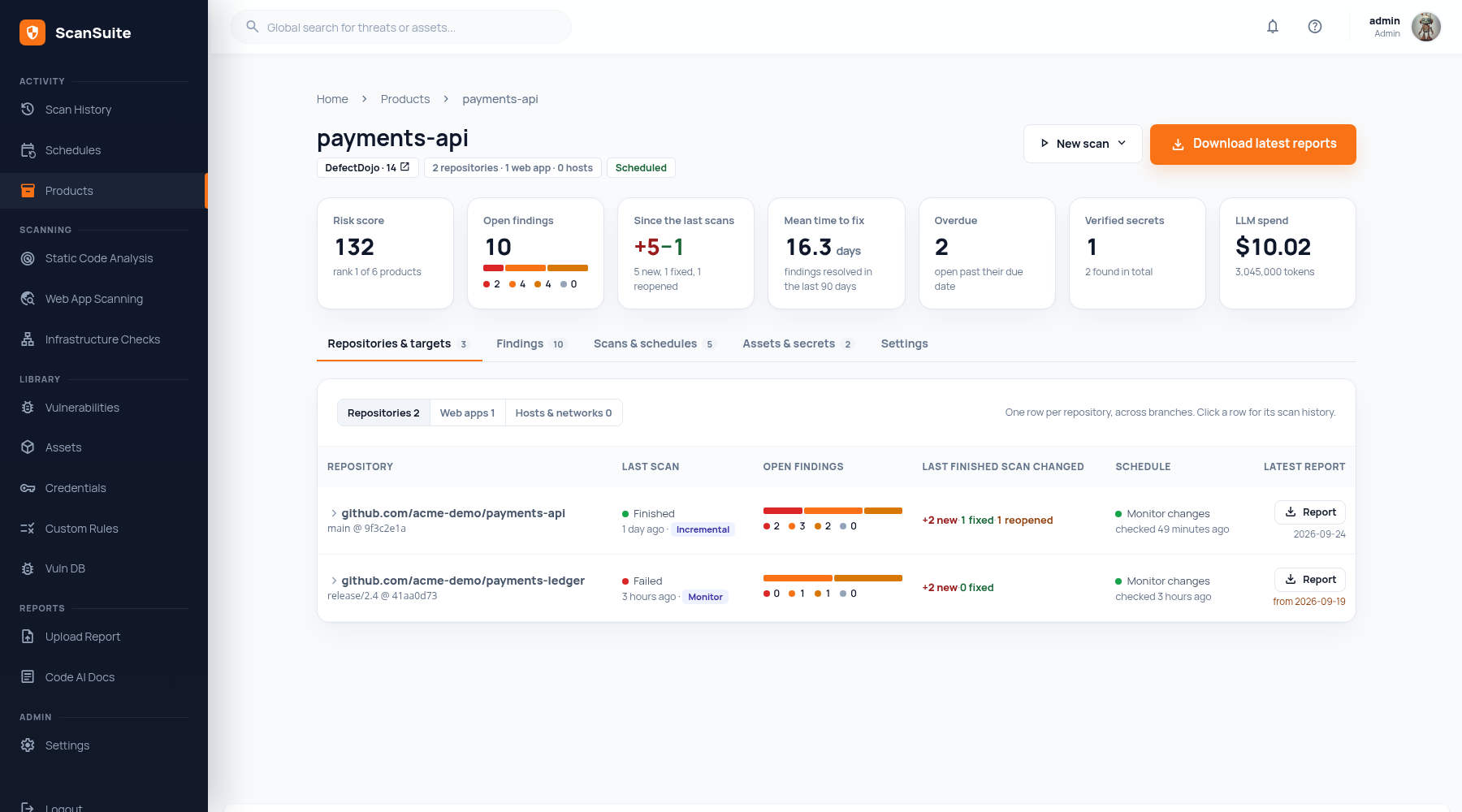
The summary
Under the name, the DefectDojo pill opens the product's engagement when the product is linked to DefectDojo; a product that is not says Local product. The next pill counts what its scans covered, and Scheduled means a schedule or monitor is set.
| Tile | What it shows |
|---|---|
| Risk score | The weighted score of its open findings, and its rank among all products. |
| Open findings | Open findings by severity. |
| Since the last scans | New, fixed and reopened findings in the latest finished scan of each target. |
| Mean time to fix | The average time from first seen to resolved, over findings resolved in the last 90 days. |
| Overdue | Open findings past their due date. |
| Verified secrets | Secrets confirmed to be valid, and how many were found in total. |
| LLM spend | What AI scans of the product have cost, with the tokens. |
Repositories and targets
The first tab lists everything the product's scans looked at. Switch between Repositories, Web apps and Hosts & networks (and Uploaded code when code was uploaded as an archive).
- A repository is one row across all its branches. The same repository entered with and without
.gitis still one row. - Web app and host targets scanned together are one row, because their report covers them together.
Each row shows the last scan with its branch, commit and mode, the open findings, what the latest finished scan changed, the schedule, and the latest report.
If the latest scan of a target failed, Report still offers the last report that exists and says which date it is from.
Click a row to see the target's last ten scans, each with its report and what it changed, and what is known about it: the framework and authentication from the architecture analysis, the files the last scan analyzed, the branch and the LLM spend.
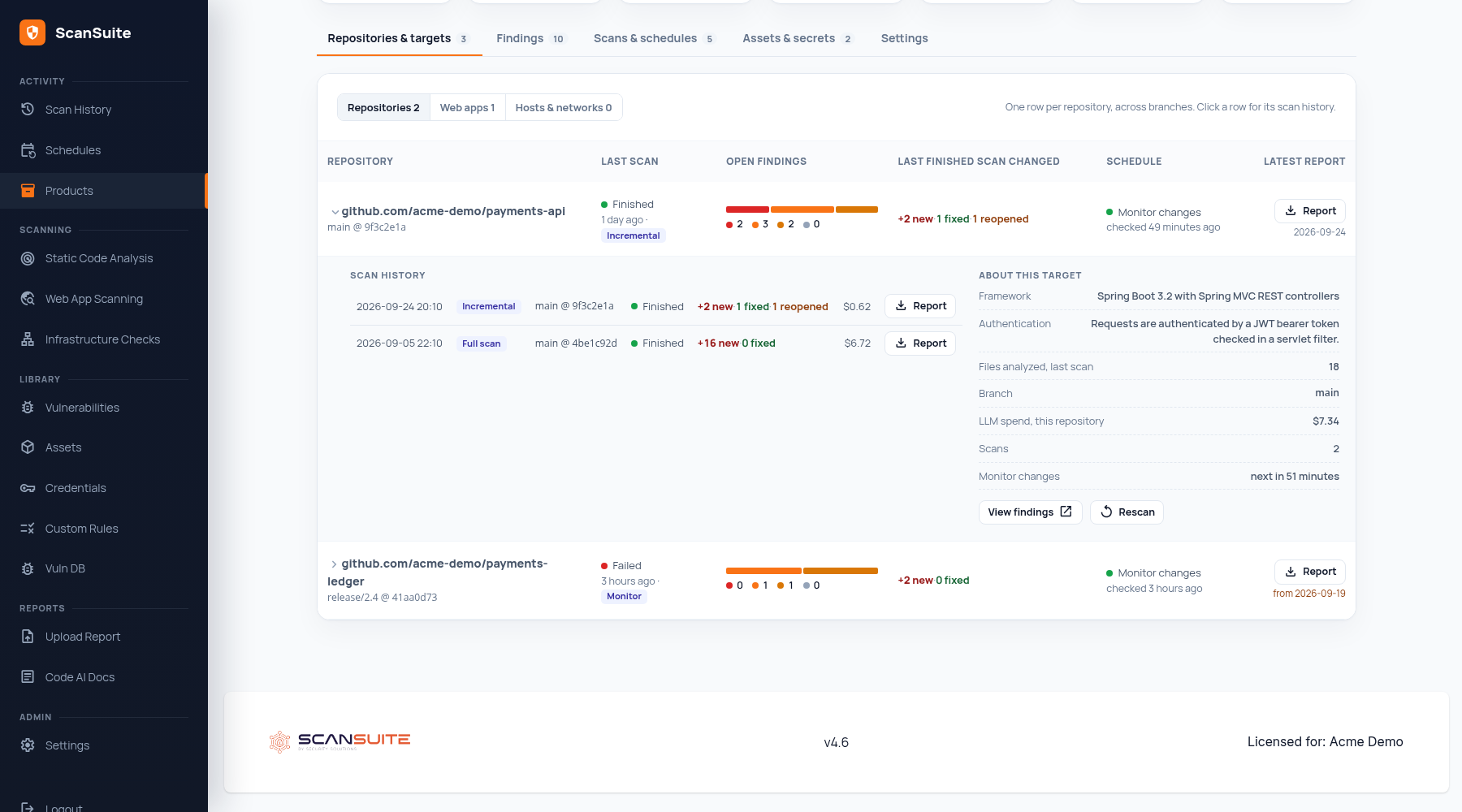
- View findings opens the Vulnerabilities page filtered to the product and this target.
- Rescan repeats the target's last scan with the same scanners, mode and branch. It is not offered while the target is being scanned.
Downloading every latest report
Download latest reports downloads one ZIP with the newest report of every target: a folder per target (repository/…, web/…, host/…), each holding that target's report as <date>-<scan id>.zip. The button is disabled until a scan of the product has a report.
Starting a scan for this product
New scan opens Static Code Analysis, Web App Scanning or Infrastructure Checks with this product already chosen.
The other tabs
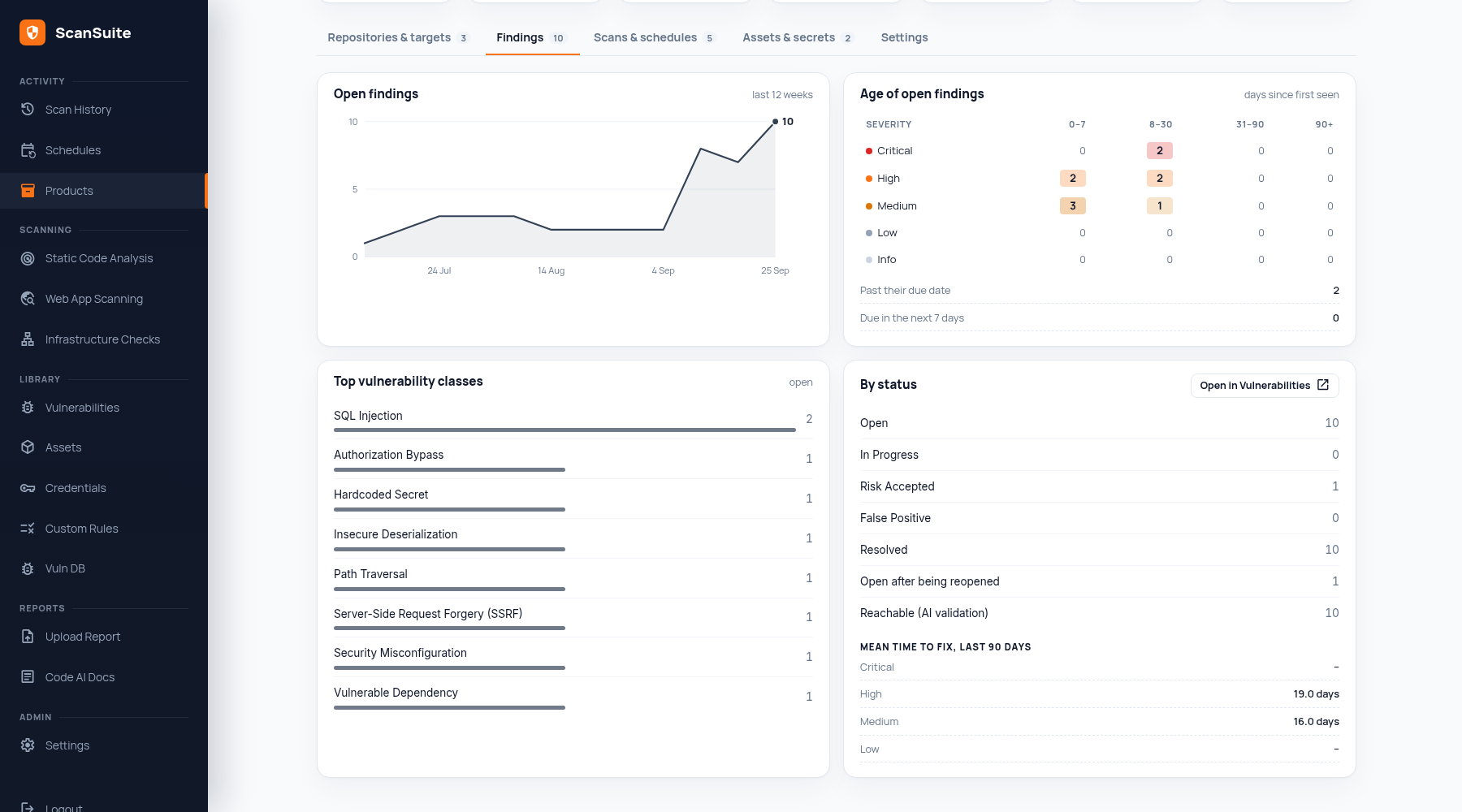
| Tab | What it shows |
|---|---|
| Findings | Open findings over twelve weeks; their age by severity (0–7, 8–30, 31–90 and over 90 days); findings past or near their due date; the top vulnerability classes; counts by status; reopened and reachable findings; and the mean time to fix per severity. Open in Vulnerabilities opens the full list. |
| Scans & schedules | Scans per week with failures, scans and failures in the last 30 days, scans running now, the median duration, the product's schedules and monitors, and its latest scans with their reports. |
| Assets & secrets | Assets in use, new, not yet assessed or not seen for 30 days, with their technologies; secrets found and verified, by type, with values masked. Open in Assets and Open in Credentials open the full lists. |
| Settings | The product's details, its suppression rules, and deleting it. |
Settings and deleting
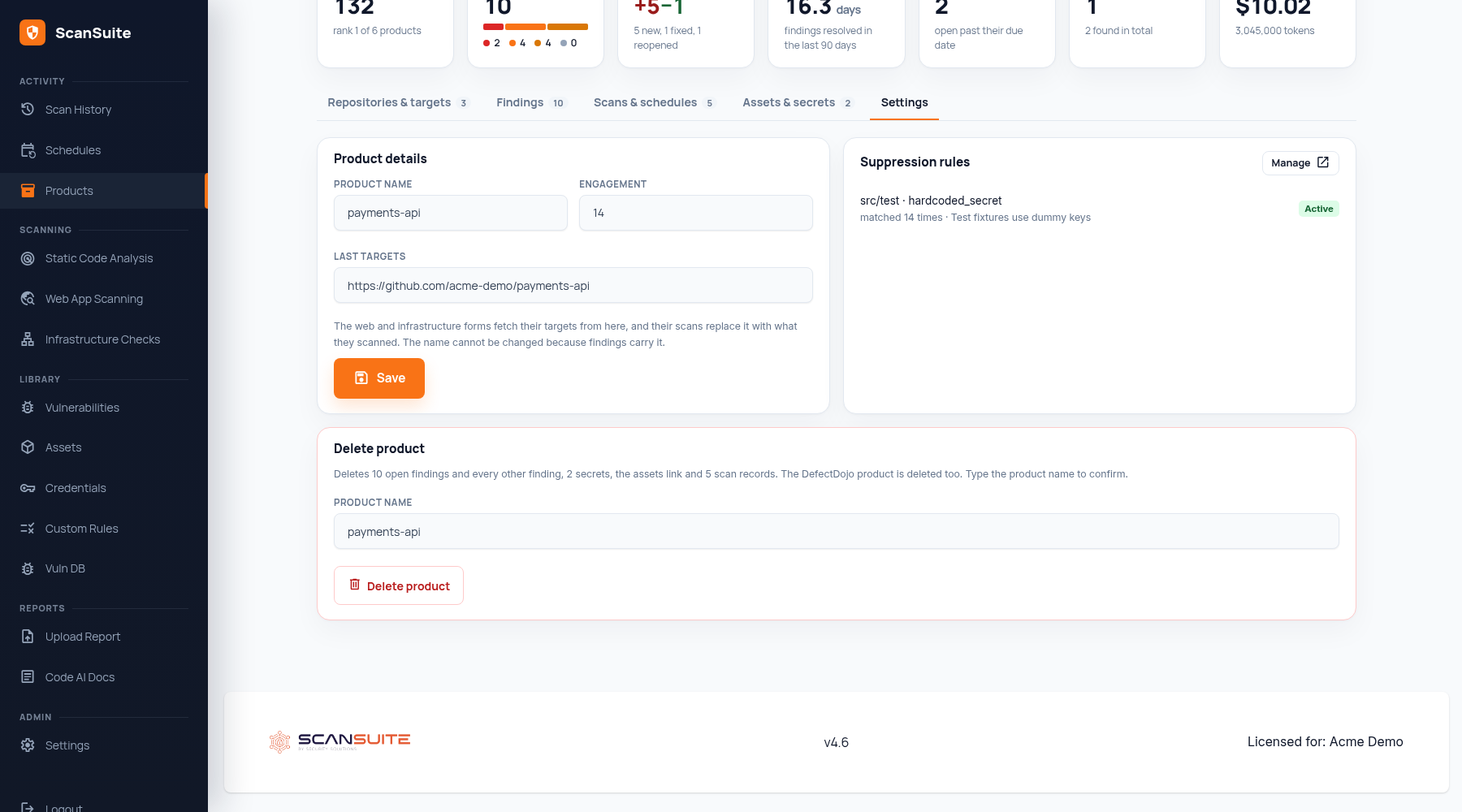
- Last targets is what the web and infrastructure scan forms fetch as their targets for this product; their scans replace it with what they scanned. The product name cannot be changed.
- Suppression rules lists the rules that apply to the product. See Custom Rules.
- Delete product is enabled once you type the product's name. It deletes all the product's findings, secrets and scan records, and its DefectDojo product where that integration is configured.
Trends
The trend lines come from a count of each product's open findings taken every night. A new installation draws the earlier weeks straight away from the dates its findings were found and resolved.
Last reviewed 2026-09-25