System Settings
Teams and their limits, shared services (system AI, Nessus, Git service, interface language), system administrators, key rotation and health.
The installation as a whole is managed in System Settings: create teams and set their limits, configure the services every team shares, connect an identity provider for single sign-on, and decide who else administers the system. System Settings is part of ScanSuite, at /admin. Open it from the user menu (System Settings) or from the Admin section of the sidebar. Only system administrators see it; for any other account the /admin address does not exist.
With a single team you will rarely need this page: only to add a team, change limits, set up single sign-on, change the system AI or the default interface language.
The first system administrator is the account created on the /setup page right after installation, see Install ScanSuite Teams. That account administers the first team and the system. Keep the installation's encryption keys with your database backups, see Backup and restore.
What a system administrator does
There is no separate administration login: a system administrator uses their ordinary account. Being a system administrator does not give access to any team's work. To see a team's products, scans, findings, assets or credentials you have to be a member of it. A system administrator can add themselves to any team, but not unnoticed: it is recorded in the system activity log.
Before saving any change in System Settings, ScanSuite checks that you signed in within the last 15 minutes. If it has been longer, it asks for your password or a fresh single sign-on; sign in and repeat the change.
System Settings tabs
| Tab | What it holds |
|---|---|
| Overview | The installation at a glance: teams, system AI, single sign-on, Nessus runs left and service health (database and session service). Below it, Needs attention lists teams without an administrator, scheduled deletions, a missing system AI, exhausted Nessus runs and services that are down, each with a link to where you fix it. |
| Teams | Every team with its status, administrators and limits. Teams are created, opened, renamed, suspended and deleted here. |
| Shared services | The system AI and its models, the Nessus scanner and its capacity, LLM prices, the Git service, the default interface language, and the limits new teams start with. |
| Sign-in and access | Single sign-on for the whole installation, and the list of system administrators. |
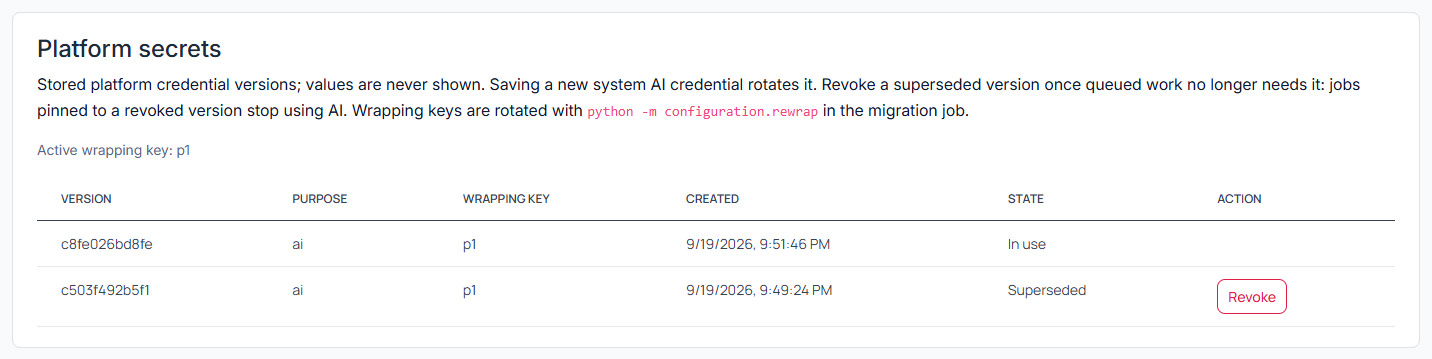
| Security | The system activity log and the stored versions of the installation's secrets. |
The Teams button in the page header opens the team page of the team you are working in, see Teams and roles.
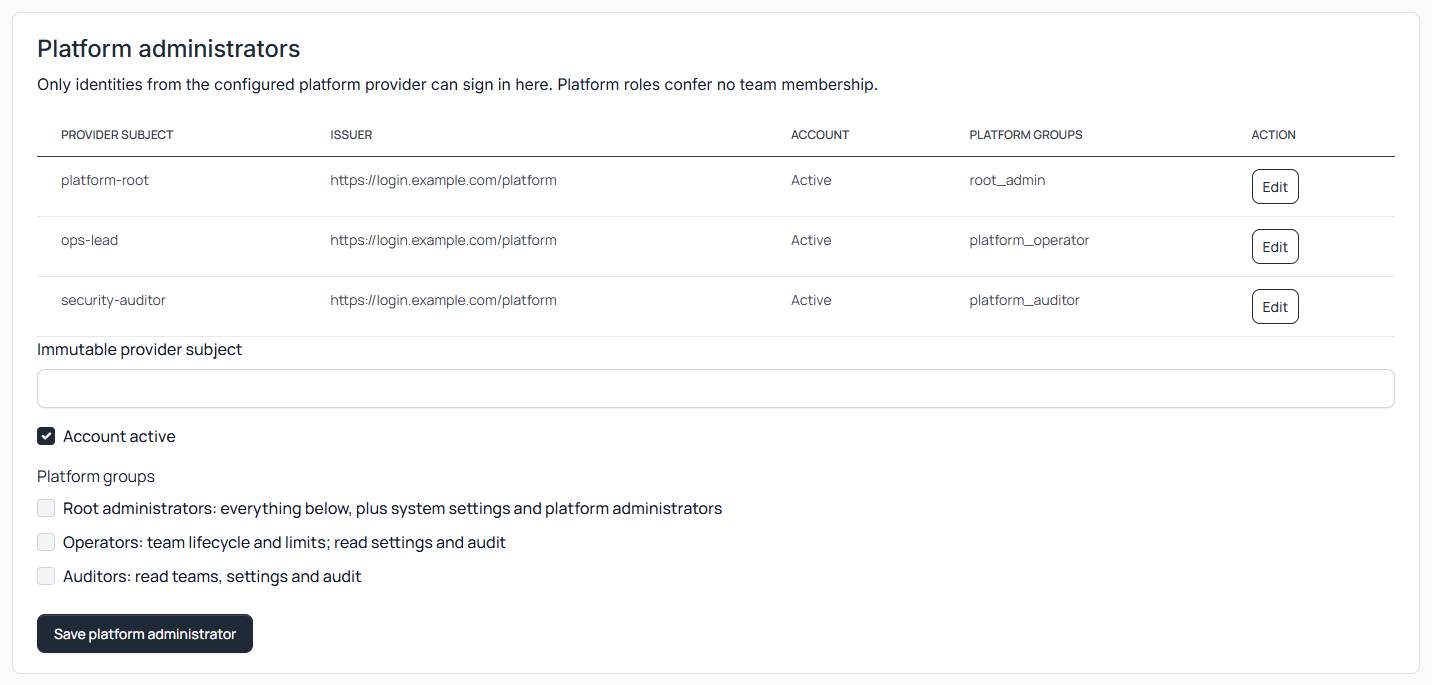
Create a team
- 01Open System Settings → Teams and click New team
The New team dialog opens.
- 02Fill in the fields
See the table below. Team name, Short name in addresses and Team administrator are required.
- 03Click Create team
The team appears in the list with its administrator. If you entered a new account name, ScanSuite shows a one-use link: hand it to the account owner, who sets a password with it.
| Field | What it does | Default | When to change it |
|---|---|---|---|
| Team name | How people see the team, for example Payments. | Empty | Always. It can be renamed later. |
| Short name in addresses | Lower-case letters, digits and hyphens. Used in addresses such as ?team=payments, the single sign-on address and the SCANSUITE_TEAM value of pipelines. | Filled in from the name | Only before creating the team: it cannot be changed afterwards. |
| Team administrator | An existing account, or a new name: ScanSuite then creates the account and shows a one-use password link. While single sign-on is required, only an existing account works. | Empty | Always. |
| Scans at once | How many scans the team may have queued and running at the same time. 1 to 1000. | 2 | For a large team or a team that runs many pipeline scans. |
| Keep data (days) | How long finished scans are kept. 1 to 3650. | 365 | For a retention policy of your own. |
| AI tokens a month | The monthly AI token cap of the team. | No limit | To cap the team's AI cost. |
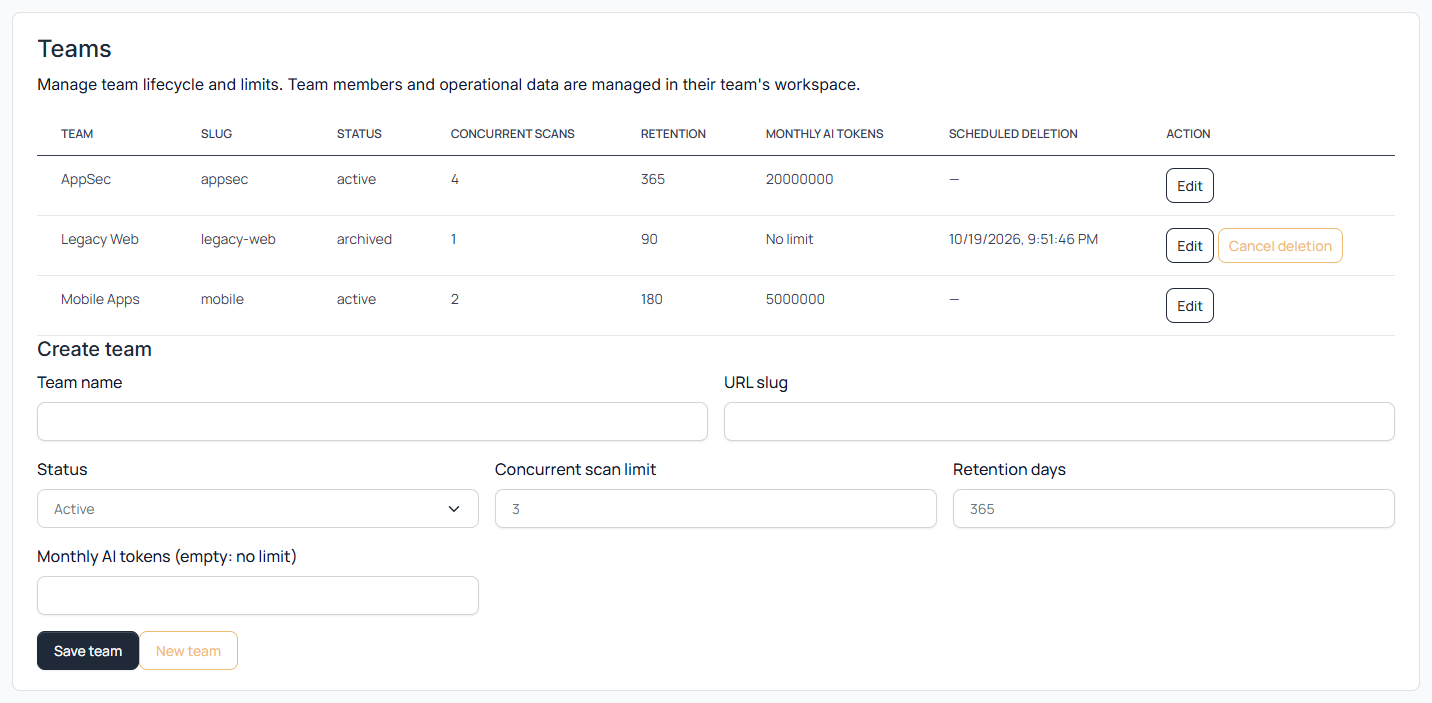
Check: the team's row on the Teams tab shows the status Active and 1 under Administrators. From then on the team administrator runs the team: adds people, connects integrations, sets up AI and allowed targets. The team's data is not visible to system administrators.
A new team cannot scan web applications or hosts yet, because its list of allowed targets is empty. The first job of its administrator is to add targets, see Teams and roles.
Find and manage a team
The Teams tab lists every team:
| Control | What it does |
|---|---|
| Find a team | Narrows the list to teams whose name or short name contains the text. |
| Show | All teams, or Needing attention: teams without an active administrator or scheduled for deletion. |
| Team, Status, Administrators, Limits | The columns of the list. Administrators is the number of active team admins; Limits shows scans at once, days of data and AI tokens a month. |
| Open | Opens the team's panel, described below. |
| Assign administrator | Takes the place of Open in the row of a team without an active administrator, and opens the same panel. |
The team's panel has three sections:
| Section | What you can do |
|---|---|
| Details and limits | Team name (rename the team; its short name stays), Status, Scans at once, Keep data (days) and AI tokens a month. Click Save. |
| Members | The team's members and their roles. Add a person: an account name and a Role (Team admin is preselected here), then Add. An existing account joins at once; a new name creates an account and shows a one-use link. Members can be suspended, reactivated or removed. When the team has no active administrator, the panel says so. |
| Danger zone | Delete team, or Cancel deletion while a deletion is scheduled. |
What each role may do is described in Teams and roles.
Status
| Status | Meaning |
|---|---|
| Active | The team works normally. |
| Suspended | The data is kept, but nobody can sign in to the team or run scans. Scans that were running stop. |
Limits
| Limit | What it caps |
|---|---|
| Scans at once | How many scans the team may have queued and running at the same time. At the limit a new scan is refused with an explanation, and a scheduled run is skipped and logged. 1 to 1000. |
| Keep data (days) | Every night ScanSuite deletes finished scans older than this, with their reports and files. The newest scan of each product, scan type and target is always kept, because later scans are compared with it. Findings, assets and credentials are not deleted. 1 to 3650 days; empty keeps data forever. |
| AI tokens a month | How many AI tokens the team may use a month, including through its own models. If the team sets a budget of its own too, the lower one applies. |
Limits go together: to remove them, empty all three fields; an AI token limit needs the other two as well.
Deletion
Delete team suspends the team and schedules its data for deletion in 30 days, in case you change your mind. Cancel deletion cancels it, but the team stays suspended: set it back to Active to put it to work again. Setting a team to Active also cancels a scheduled deletion. When the 30 days are over, the team's scans, findings and files are deleted for good. Its name stays in old log entries so they can still be read.
Shared services
The Shared services tab holds what teams use together. Each card has its own Save button.
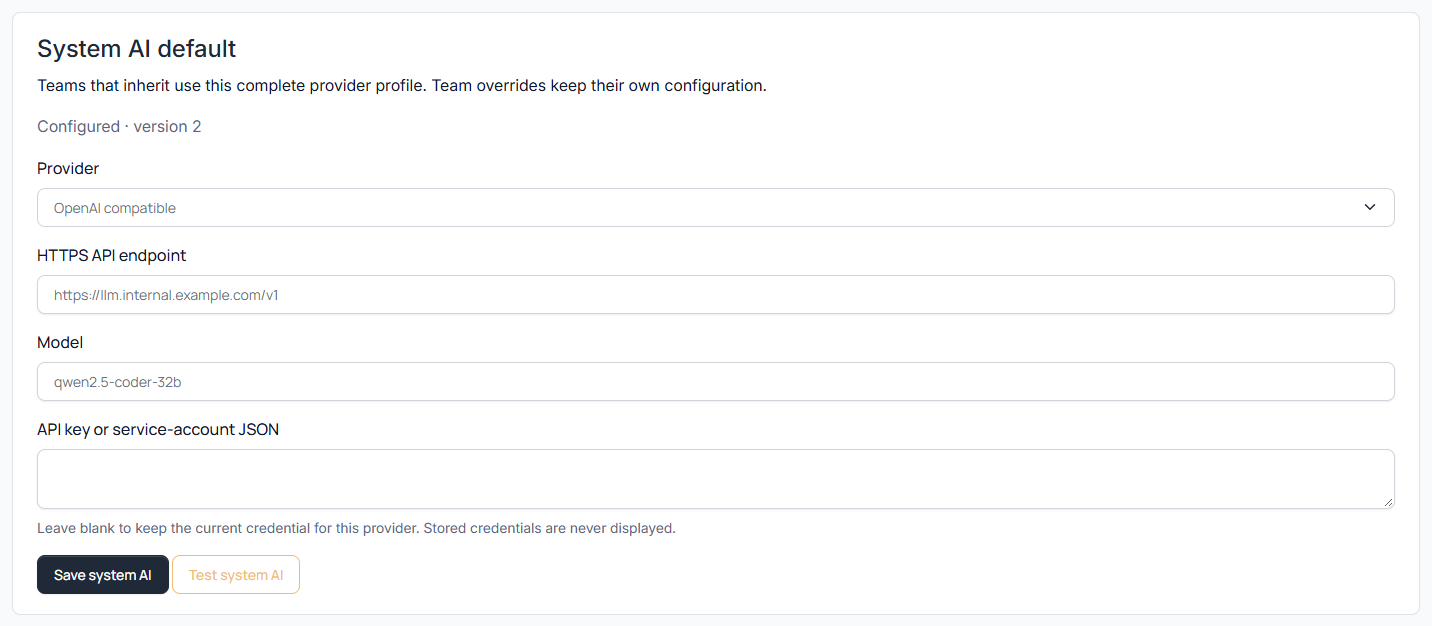
System AI
The System AI card and the cards below it (Task routing, AI connections, AI models and AI usage by task) hold the models every team uses unless it sets its own. Teams see these models by their names only, never the connections behind them. Test connection asks the first model of the default route; each model can be tested on its own in the AI models card. Every field, and how to route each AI task to a model, is described in AI providers and cost.
Nessus, prices, Git service, language
| Card | What it holds | Default | When to change it |
|---|---|---|---|
| Nessus scanner | Address, Account and Password of the Nessus appliance every team's Nessus scans run on. Teams never see its address or account. The password is sent only to the address it was saved with, so changing the address needs it again; leave it empty to keep the saved one. Test connection checks the saved values. | Not set | When a team needs Nessus scans. |
| Nessus capacity | Runs left: how many Nessus runs all teams have left together; each finished Nessus scan uses one. At zero, Nessus scans are refused until you add runs. | Empty (no limit) | When your Nessus licence limits the number of scans. |
| LLM prices | Price table (JSON): USD per million tokens for each model. Once a model is priced, scans, History and the dashboards show what AI calls cost. Below the field are the models your teams have used. | Empty (no costs shown) | When you want AI costs shown. |
| Git service | Where repositories are for every team: Service (GitLab, Bitbucket or GitHub); for Bitbucket also Bitbucket address and SSH clone address pattern. github.com, gitlab.com and bitbucket.org are recognised by their address whatever is set here. | GitLab | When your own Git server is Bitbucket or GitHub. |
| Interface language | Default language: the language people see until they choose their own on My account, the sign-in page included. English or Русский. | English | When most people should see Russian. |
| New teams start with | For reference: the limits a new team gets (two scans at once, 365 days of data, no AI token limit) and how long a deleted team's data is kept (30 days). Fixed for the installation. | — | Not editable. |
How the Git service and the SSH keys give scans access to private repositories is described in Git repository authentication.
A language someone chose on their account page is kept in their browser and is not changed by the default. See Members and accounts.

Prices are a JSON table keyed by the exact model name. A model of the system AI is priced under the name teams see, for example Strong (system); a team's own model under its model name:
{
  "Strong (system)": {"prompt": 3, "completion": 15},
  "qwen3-coder-30b": {"prompt": 0.2, "completion": 0.6}
}
Prices apply to past usage too: ScanSuite stores token counts and prices them with the current table.
Sign-in and access
The Single sign-on card connects the installation's identity provider; every field is described in Single sign-on.
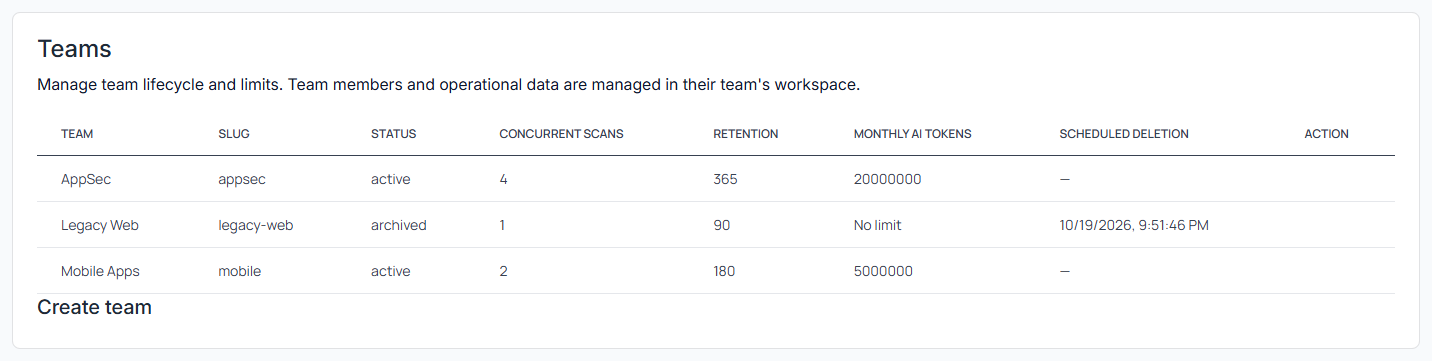
The System administrators card lists the accounts that can open System Settings, with their Account and Account status. To add one, enter the name of an existing account under Add an administrator and click Add. The account must already exist. There is always at least one system administrator: the last one cannot be removed.
Secrets
The system AI keys and the Nessus password are never shown again once saved. To change a key, save the new one: scans already queued finish with the old one. Earlier versions are listed on the Security tab under Stored secrets (advanced). Revoke an old version only when no queued scan still uses it. The version in use cannot be revoked.
Rotate the encryption keys
Stored passwords and keys (teams' integrations and scan credentials, the system AI, Nessus and single sign-on, and each person's own repository keys) are encrypted with the keys in /opt/scansuite/key/scansuite-secrets.env. SCANSUITE_WRAPPING_KEYS there is a JSON object of key names and 256-bit keys in base64; SCANSUITE_ACTIVE_WRAPPING_KEY names the one new secrets are encrypted with.
Make a secrets backup first (./scansuite --backup-secrets) and keep the old key in the file until the check below passes. A key removed while secrets still use it makes them unreadable.
- 01Generate a new key
It prints a random 256-bit key in base64.
Shellopenssl rand -base64 32 - 02Add it to key/scansuite-secrets.env
Edit the file as root: add the new key to the JSON object in SCANSUITE_WRAPPING_KEYS under a new name, for example "k2", keeping the old one, and set SCANSUITE_ACTIVE_WRAPPING_KEY to that name.
- 03Restart, so the new values reach .envShell
cd /opt/scansuite && ./scansuite restart - 04Re-encrypt the stored secrets
Each scope prints how many secrets it re-encrypted. --scope team, platform or user limits it to one kind; all is the default.
Shellcd /opt/scansuite && docker compose run --rm migrate python -m configuration.rewrap - 05Check that nothing is left on the old key
Expected: team, platform and user each report "secrets on old keys: none", and the command exits 0. It exits 1 while old keys are still in use.
Shellcd /opt/scansuite && docker compose run --rm migrate python -m configuration.rewrap --check - 06Remove the old key
Only once the check passes: delete the old entry from SCANSUITE_WRAPPING_KEYS, run ./scansuite restart, and make a new secrets backup.
Do not skip the restart: rewrap reads the keys from the environment. Without it, it still sees the old active key and reports that there is nothing to re-encrypt.
Health
The Service health tile on the Overview tab shows whether the database and the session service are up. For a full check of the server, run ./scansuite doctor, see Setup parameters and services.
For a monitoring script on the server, run the installation's own health check. It prints a JSON report and ends with MONITOR: OK (exit code 0) or MONITOR: ALERT (exit code 1) with a list of alerts, for example a team without an active administrator or scans running for more than 48 hours:
cd /opt/scansuite && docker compose exec -T web python -m database.deploy monitor/admin/health answers only a signed-in system administrator (anyone else gets "Not found" or the sign-in page), so it is not suited to an external monitor. It returns status and teams_without_admin, the short names of active teams without an active administrator, and answers 503 when the database or the session service is unavailable.
When nobody can sign in to administer the system
ScanSuite does not let you remove the last system administrator, and system administrators keep password sign-in even when single sign-on is required. So this only happens if no system administrator has a password or all of them lost access. Then make an existing, active account a system administrator on the server:
cd /opt/scansuite && docker compose exec web python -m authentication.recover --grant-installation-admin <USER_NAME><USER_NAME> is the account name, as shown on My account. Expected output: <USER_NAME> administers the installation. The grant is in the audit log. The grant is recorded in the system activity log.
Last reviewed 2026-10-19